
Turn your words into real, scalable vector artwork. Choose from STLPlayground's complete categorized font library and prepare SVG lettering for cake toppers, stands, signs, and Silhouette Art Maker.
Preparing the font library…
Export Solid Filled Text, then upload your SVG to Silhouette Art Maker. Choose a stand or cake-topper spike there. Connected Lettering highlights isolated pieces but never draws connectors. To join the dot of an i, select Detached Detail and move it into another stroke; then verify the final mesh in the builder.
Open Silhouette Art Maker →Conversion happens in your browser. Uploaded/selected computer font bytes remain in memory and are not sent to STLPlayground; library fonts are fetched from the shared font CDN.
Turn typed text into clean SVG vector artwork with the STLPlayground Text to SVG Creator. Choose from a large categorized font library, create solid text or line-art lettering, and export SVG files for silhouette art, cake toppers, signs, and custom 3D printing projects.
Free Text to SVG Creator for Custom Lettering
The Text to SVG Creator makes it easy to turn your words, names, and phrases into clean SVG vector artwork. Choose from a large categorized font library, type your text directly in the browser, and export scalable SVG lettering for creative, decorative, and 3D printing workflows.
Whether you are designing a cake topper, freestanding name display, silhouette word art piece, decorative sign, or personalized 3D print, this tool helps you create lettering that is much easier to reuse in STLPlayground builders and other SVG-compatible workflows.
Turn Text Into SVG Vector Paths
Unlike a basic text box in design software, the Text to SVG Creator converts your lettering into real vector path geometry. That means the exported SVG does not depend on the recipient having the font installed. Instead, the lettering is turned into reusable SVG shapes that can be edited, imported, and used in compatible design and fabrication tools.
You can create:
- Solid filled SVG lettering
- Clean line-art lettering
- Script text for names and decorative phrases
- Display text for signs and labels
- Custom SVG word art for 3D printing projects
Choose From a Large Font Library
The utility uses the same broad font library available across STLPlayground builders, making it easy to search fonts, browse categories, and experiment with different visual styles. Script and cursive fonts are especially useful for cake toppers, wedding décor, and freestanding word art, while bold display fonts can work well for signs, labels, and decorative text graphics.
Because different fonts connect differently, you can also fine-tune the arrangement of your lettering to prepare it for later use in a 3D design workflow.
Arrange Letters, Lines, and Small Details
The Text to SVG Creator is designed for more than simple text export. You can refine how the lettering fits together, especially when using connected script fonts.
- Move individual letters
- Move entire lines of text
- Adjust detached details such as dots or accents
- Use optical auto-arrange to tighten lettering naturally
- Check whether the design contains separate disconnected pieces
This is particularly helpful for script-based designs where visual flow matters. If a letter, dot, flourish, or accent is separate, you can reposition it manually so the final SVG is better prepared for downstream design use.
Useful for Cake Toppers, Signs, and Silhouette Art
One of the best uses for the Text to SVG Creator is preparing lettering for the Silhouette Art Maker With Stand. That builder creates printable silhouette-style models from SVG artwork and can be used to produce freestanding display pieces or cake toppers with an integrated spike. STLPlayground recommends using clean SVG artwork with closed shapes when preparing designs for that builder.
After creating your lettering here, you can export the SVG and bring it into the silhouette workflow to make:
- Cake toppers with names or short phrases
- Freestanding word art
- Decorative signs
- Silhouette-based display pieces
- Custom event and celebration decorations
Part of a Broader SVG Workflow
The Text to SVG Creator complements other STLPlayground SVG and design tools. If you are working from an existing graphic rather than typed text, try the Image to SVG Converter to trace PNG, JPG, or WebP artwork into clean vector paths. If your source is a photo, start with the Photo to SVG Prep Tool to isolate and simplify the subject before converting it to SVG.
You can browse all STLPlayground utilities for more browser-based design tools, or explore the full library of 3D model builders to find printable projects that work with custom SVG artwork.
Why Use a Text to SVG Tool?
SVG lettering gives you a flexible starting point for many different digital fabrication and design workflows. Instead of relying on a live font layer, vector lettering gives you shapes that can be scaled and reused consistently. This is useful for:
- 3D printing
- Laser and cutting workflows
- Silhouette-style artwork
- Sign design
- Decorative event graphics
- Custom craft and maker projects
Frequently Asked Questions
What does the Text to SVG Creator do?
The Text to SVG Creator turns typed text into clean SVG vector path artwork using your selected font and layout settings.
Can I use script fonts for cake toppers?
Yes. Script fonts are one of the most useful applications for this utility. You can refine the lettering layout and then use the exported SVG in the Silhouette Art Maker With Stand for cake topper and stand-based designs.
Does the exported SVG require the font to be installed?
No. The exported file uses vector paths rather than a live text layer, so the SVG does not depend on the font being installed in the receiving software.
Can I move separate dots or accents?
Yes. Detached details such as dots, accents, or other isolated script elements can be adjusted independently so you can manually improve the connected appearance of the lettering.
What if I need to convert artwork instead of text?
If you already have an image or graphic, use the Image to SVG Converter. If you are starting with a photo, begin with the Photo to SVG Prep Tool.
Create SVG Lettering for Your Next Project
The Text to SVG Creator gives makers, crafters, and 3D printing users a clean way to turn custom text into reusable vector artwork. Type your phrase, choose a font, fine-tune the layout, and export an SVG that is ready for your next STLPlayground workflow.
Related Utilities
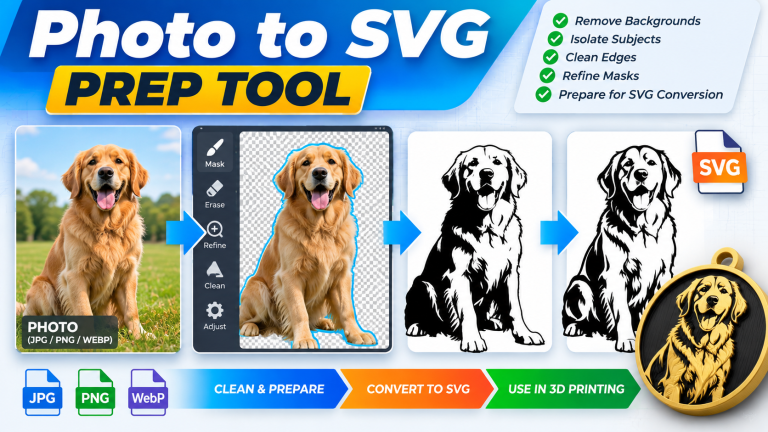
Photo to SVG Prep Tool
Clean up photos before SVG conversion. Isolate your subject, refine masks and edges, remove unwanted areas, and prepare…
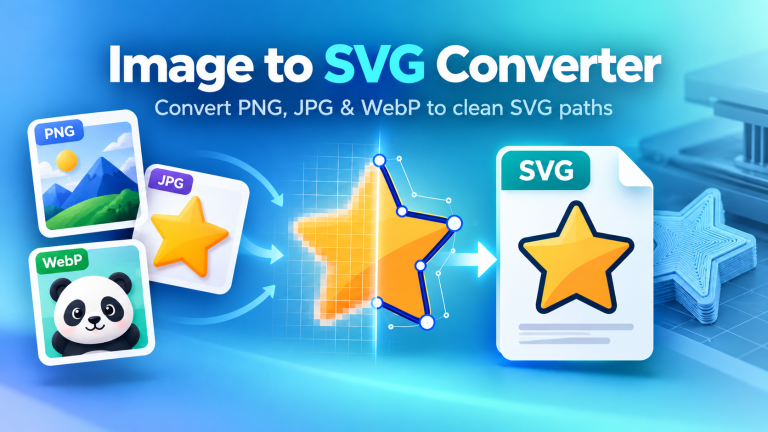
Image to SVG Converter
Convert Images to Clean SVG Vector Files Turn your PNG, JPG, JPEG, or WebP artwork into a clean,…
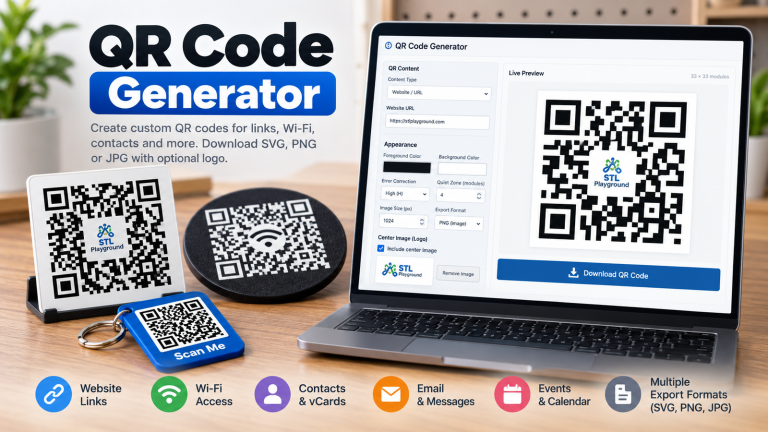
QR Code Generator
Create custom QR codes for websites, Wi-Fi, contacts, messages and events. Customize colors, add a center logo to…